
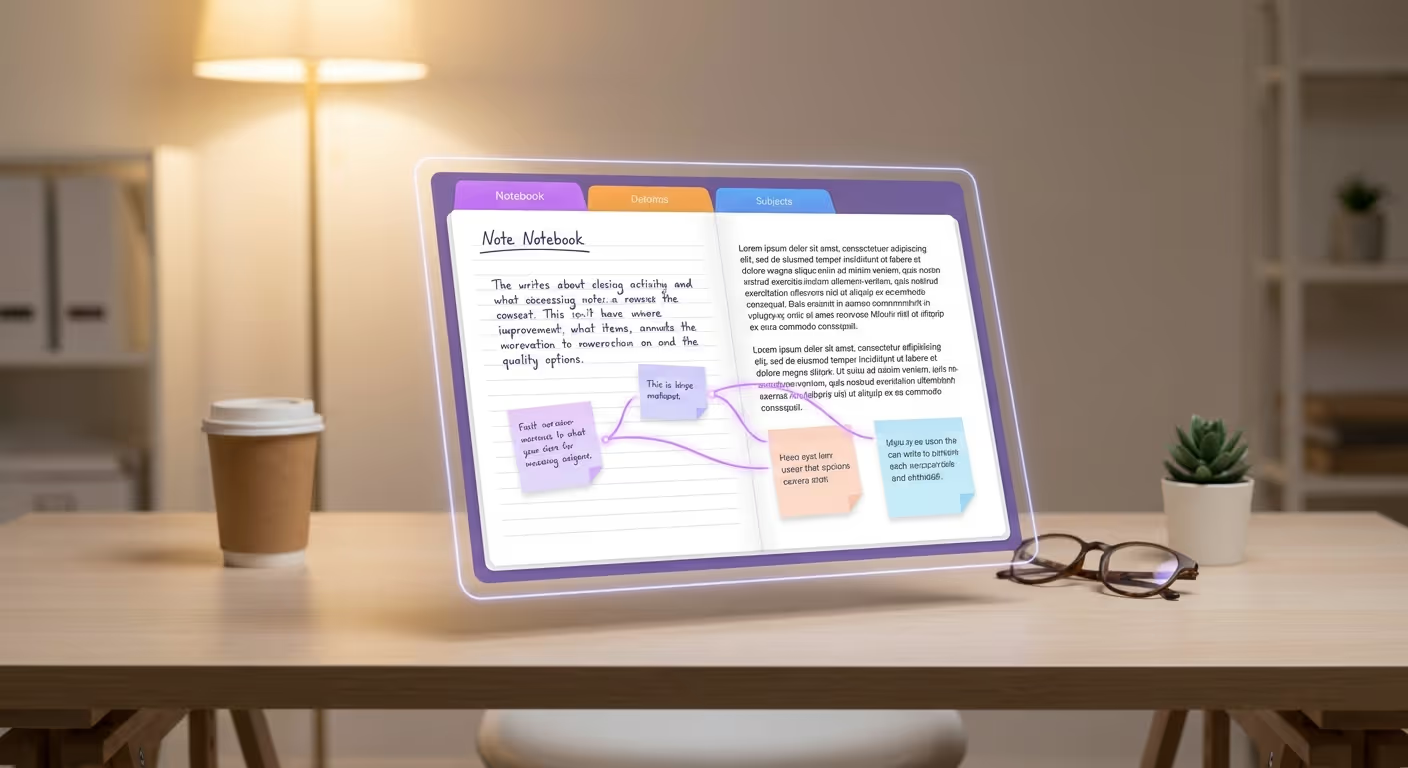

OneNote for Work: The Underrated Microsoft 365 App
Every Microsoft 365 subscription includes OneNote. And in most organisations, almost nobody uses it.
That's a shame, because OneNote is genuinely useful, arguably one of the most underrated apps in the entire Microsoft 365 suite. While people spend hours wrestling with Excel spreadsheets or hunting through email threads, OneNote quietly solves problems they didn't know they had.
So what is OneNote, and why should you care?
What OneNote Actually Is
OneNote is a digital notebook. That sounds simple, and it is, but the simplicity is the point.
You can type notes, paste images, embed files, record audio, draw diagrams, clip web pages, and organise everything into notebooks, sections, and pages. Unlike Word documents that sit in folders, OneNote keeps everything in one place, searchable and always accessible.
Think of it as a place to capture and organise information that doesn't fit neatly into other tools. Meeting notes. Project documentation. Research. Reference materials. The stuff that would otherwise end up scattered across emails, documents, sticky notes, and your memory.
Why It Gets Overlooked
OneNote suffers from a few perception problems.
First, it's free with Microsoft 365, which makes people assume it's basic or limited. (It's not.)
Second, it's been around since 2003, which makes it feel like yesterday's technology. (Microsoft has actually been investing heavily in it recently, adding Copilot integration, improved meeting features, and new tools throughout 2024 and 2025.)
Third, people don't know what to use it for. They have Word for documents, Excel for data, Teams for communication. So where does OneNote fit? The answer is: everywhere those tools don't quite work.
Where OneNote Shines
Meeting notes that actually get used
OneNote integrates directly with Outlook and Teams. You can pull meeting details, including attendees, agenda, date, and time, straight into a OneNote page, take notes during the meeting, and share them with participants afterwards.
Better still, if you're in a Teams meeting with transcription enabled, the transcript and recording can be linked directly into your OneNote. No more hunting through different apps to piece together what happened.
For managers, creating a shared notebook for each direct report, with sections for one-to-ones, development plans, and ongoing projects, is a simple way to keep everything organised and accessible.
Project documentation
Every project accumulates information: requirements, decisions, meeting notes, research, links, reference documents. In most organisations, this ends up scattered across email threads, SharePoint folders, and people's heads.
A OneNote notebook for each project gives you a single place to capture all of it. Sections for different workstreams. Pages for individual topics. Everything searchable. Everything in one place.
When someone new joins the project, you point them to the notebook. When someone asks 'where did we document that decision?', you know exactly where to look.
Personal knowledge base
For individual use, OneNote works brilliantly as a personal knowledge base. Procedures you've figured out. Notes from training sessions. Reference information you look up repeatedly. Links to useful resources.
Unlike bookmarks or scattered documents, everything is in one place, searchable, and organised however makes sense to you.
Collaborative documentation
OneNote notebooks can be shared, and multiple people can edit simultaneously. For teams that need to build shared knowledge, such as procedures, FAQs, and how-to guides, OneNote offers a lightweight alternative to SharePoint pages or wikis.
It's not a replacement for formal documentation systems, but for team-level knowledge that doesn't need heavy governance, it's often the right fit.
Features Worth Knowing About
Tags: You can tag content as To-Do, Important, Question, and more. Tags are searchable, so you can pull up all your action items across an entire notebook.
Search: OneNote's search is excellent. It finds text in typed notes, handwritten notes (if you use a stylus), images (via OCR), and even audio recordings.
Templates: OneNote includes templates for meeting notes, to-do lists, project planning, and more. You can also create your own.
Page linking: You can link between pages within a notebook, creating a wiki-style structure where related information connects together.
Ink and drawing: If you have a tablet or touchscreen, OneNote supports handwriting and drawing. Recent updates have improved ink-to-text conversion and annotation on PDFs and images.
Copilot integration: In 2024 and 2025, Microsoft added Copilot features to OneNote. You can summarise notes, generate content, create to-do lists from meeting notes, and more, directly from the Copilot panel.
Getting Started
If you haven't used OneNote before, start simple:
- Create one notebook - maybe for your current project, or for meeting notes, or as a general work notebook.
- Create a few sections - keep it to three or four to start. You can add more later.
- Start capturing - meeting notes, ideas, reference information. Don't worry about perfect organisation; you can restructure as you go.
- Use search - OneNote's search is good enough that you don't need perfect organisation. Just get things in there.
Once you're comfortable, experiment with sharing notebooks with colleagues, connecting OneNote to your Outlook meetings, or using tags to track actions.
Where to Access OneNote
OneNote is available on Windows, Mac, iOS, Android, and the web. Your notebooks sync across all devices via OneDrive, so you can access them anywhere.
On Windows, there are actually two versions: the full OneNote app (included with Microsoft 365) and an older 'OneNote for Windows 10' app that Microsoft is retiring in October 2025. If you're still using the Windows 10 version, it's worth switching to the main OneNote app to get all the latest features.
The Bottom Line
OneNote isn't glamorous. It doesn't have the cachet of newer tools or the complexity of enterprise platforms. But it solves real problems that most people encounter every day: keeping track of information, organising notes, and finding things when you need them.
If you're paying for Microsoft 365 and not using OneNote, you're leaving value on the table. Give it a try.
Our OneNote training covers practical uses alongside the rest of the Microsoft 365 suite, helping your team get more from the tools you already have. Get in touch to find out more.



Ready to get more from Microsoft 365?
Book a free consultation to talk through where you are and where you want to be. No pressure, no hard sell. Just an honest conversation.